I remember the first time I searched for how to set up NFC tags. I wasn’t trying to be “techy.” I just wanted a faster way to handle small daily tasks. What surprised me was how quickly it became part of my routine.
Now, with one tap, I can start my work mode, connect to Wi-Fi, or silence my phone at night. Once you understand how to set up NFC tags, you start seeing opportunities everywhere to simplify your day.
Why Did I Start Using NFC Tags in My Daily Routine?
At some point, I realized I was wasting time on tiny, repetitive actions. Opening the same apps. Turning on the same settings. Adjusting the same things every single day.
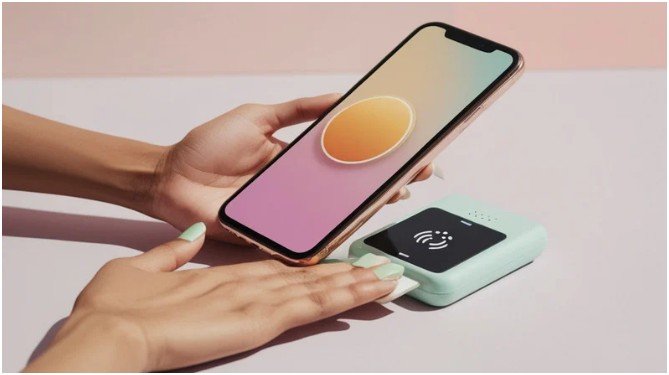
That’s when I started experimenting with NFC tags. Instead of tapping through menus, I replaced those actions with one physical tap. It felt small at first, but the time savings added up quickly.
What I like most is how effortless it feels. There’s no learning curve once it’s set up. You tap, and things just happen. That kind of simplicity fits perfectly into a busy routine.
What Do You Need Before You Learn How to Set Up NFC Tags?
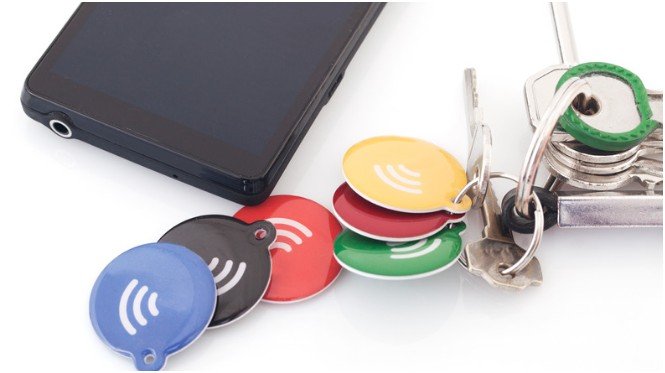
Before anything else, you need the right setup. I always recommend starting simple.
You’ll need NFC tags like NTAG213 or NTAG215. They’re affordable, easy to find, and work with both iPhone and Android. I keep a few extra because once you start using them, one is never enough.
Placement matters more than people expect. I once stuck a tag on a metal desk and couldn’t figure out why it failed. If you plan to place it on metal, use anti-metal NFC tags. That one small detail saves a lot of frustration.
How to Set Up NFC Tags on iPhone Without Overthinking It
When I first learned how to set up NFC tags on iPhone, I expected it to be complicated. It wasn’t.
I use the Shortcuts app, which comes built-in. I open it, go to Automation, and create a personal automation. Then I select NFC and scan the tag.
After that, I assign actions. I usually set things like turning on focus mode, playing music, or adjusting lights. The real magic happens when I turn off “Ask Before Running.” That makes everything instant.
Now, I keep a tag near my bed. One tap, and my phone switches to sleep mode. No extra steps. No distractions.
How to Set Up NFC Tags on Android for Real-Life Use
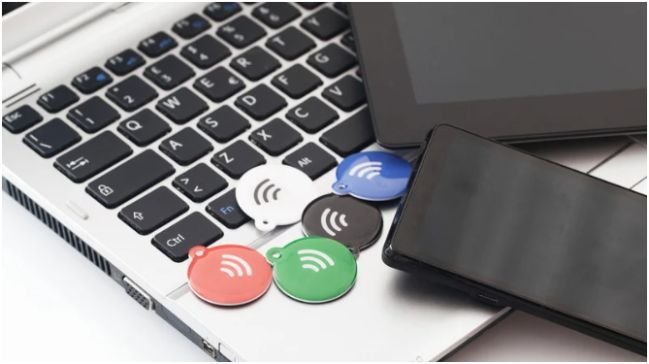
Android gives more flexibility, but it also needs apps to make things work smoothly.
For simple tasks, I use NFC Tools. It helps me write data like Wi-Fi access or URLs onto a tag. It’s quick and reliable.
For deeper automation, I prefer MacroDroid or Tasker. These apps let me stack multiple actions together.
For example, I created a “car mode” tag. When I tap it, Bluetooth turns on, maps open, and notifications get limited. It feels like my phone understands what I need before I even ask.
How to Set Up NFC Tags for Guests, Friends, or Anyone
One of the most useful things I’ve done is create public NFC tags.
Instead of sharing my Wi-Fi password repeatedly, I placed a tag near my desk. Anyone can tap it and connect instantly. No typing. No confusion.
Using NFC Tools, I go to the “Write” section and add a Wi-Fi record or URL. Then I write it to the tag.
It’s one of those small upgrades that makes your space feel smarter without trying too hard.
How to Set Up NFC Tags in a Daily Routine That Actually Works
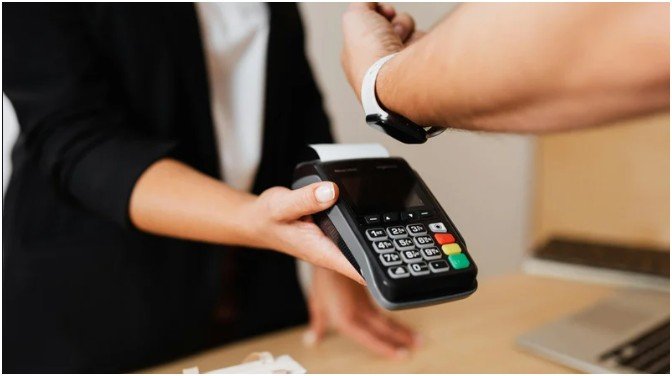
Here’s what worked for me after some trial and error.
I started with just one tag. I placed it where I naturally perform an action—my desk. That tag activates focus mode and opens my work apps.
Then I added another near my bed. That one handles sleep mode. Over time, I added more, but only where they made sense.
The key is not to overcomplicate it. If a tag doesn’t save you time or effort, you won’t use it. Keep it practical, and it becomes second nature.
How-To: How to Set Up NFC Tags Step by Step (My Exact Routine)
When someone asks me how to set up NFC tags, I always share this exact routine with my everyday gadget because it works without confusion.
First, I choose the action I want to simplify. I don’t start with the tag—I start with the problem. For example, turning on focus mode when I sit at my desk.
Next, I open the app I plan to use. On iPhone, I go to Shortcuts. On Android, I use NFC Tools or MacroDroid depending on the complexity.
Then I scan the NFC tag and assign actions. I make sure the actions are simple and useful. I avoid stacking too many things at first.
After that, I test it immediately. I tap the tag multiple times to confirm everything runs smoothly.
Finally, I place the tag exactly where I need it. Placement is what makes the habit stick. If it’s not in the right spot, I won’t use it consistently.
Quick Comparison: iPhone vs Android NFC Setup
| Feature | iPhone (Shortcuts) | Android (Apps) |
| Ease of Setup | Very simple | Moderate |
| Built-in Support | Yes | Limited |
| Customization | Moderate | High |
| Best For | Quick routines | Advanced automations |
From my experience, iPhone feels smoother for beginners, while Android gives more control if you like customizing everything.
What Small Mistakes Should You Avoid When Learning How to Set Up NFC Tags?
I made a few mistakes early on that slowed me down.
I overcomplicated my first setup. Too many actions made it unreliable. Keeping things simple worked better.
I also placed tags in random spots. If it doesn’t match your routine, you won’t use it.
And one important thing—always keep your phone unlocked when tapping. I missed that at first, and nothing worked.
Key Takeaways
- Start simple with one useful automation
- Use NTAG213 or NTAG215 for compatibility
- Focus on placement to build habits
- Keep actions practical and reliable
- Test everything before daily use
FAQs About How to Set Up NFC Tags
1. Do NFC tags work without internet?
Yes, most NFC actions work without internet. However, tasks like opening websites or syncing data need a connection. Basic automations like toggling settings work offline.
2. Can anyone use my NFC tag?
Only if you create it as a public tag. Personal automations work only on your phone, while written tags (Wi-Fi, URLs) work for anyone who taps.
3. Are NFC tags safe to use?
Yes, they’re safe for everyday use. Just avoid writing sensitive information like passwords unless necessary. Stick to trusted apps and simple actions.
4. How many NFC tags should I start with?
Start with one or two. Focus on high-impact areas like your desk or bedside. Once you get comfortable, you can expand gradually.
Tiny Tech, Big Upgrade: Why I’ll Never Go Back
Once I figured out how to set up NFC tags, I stopped thinking about them as “tech.” They became part of my routine.
It’s not about doing something impressive. It’s about removing friction from your day. One tap replaces multiple steps, and that changes how your day flows.
If you’re curious, start with one tag today. Place it where you’ll use it naturally. That one small change might quietly become your favorite daily habit.